
A social media content calendar records what you plan to post, where it will appear, when it should go out and who will check the result. Start with one row for each channel delivery, so a successful Facebook post and a failed Telegram delivery can have different statuses.
Download the free Excel content calendar or the 12-row CSV example. Both are available without an account or email. The workbook contains 12 fictional ideas across four weeks and 12 extra empty slots. Replace the examples with your own material. The dates and hours are planning placeholders, not recommended posting times or customer results.
Use the file to prepare a small publishing plan, then move reviewed posts into AppStruct Social or your chosen publishing tool. The spreadsheet itself sends no posts.
Download the content calendar template
| File | Use it for | What it includes |
|---|---|---|
| Excel workbook (.xlsx) | An editable four-week plan | 24 slots, date formulas, channel and status dropdowns, media briefs and delivery checks |
| CSV example (.csv) | A plain table you can adapt | The 12 fictional example rows with fixed dates and a time-zone placeholder |
The Excel file has one worksheet. Yellow cells are editable, blue date cells calculate from Plan start + Day offset, and grey delivery checks respond to the status and published URL you enter. The original example starts on November 23, 2026. Change that date and enter your time zone before using the plan.
The CSV is a static example. It does not carry Excel formulas, dropdowns or formatting. Update its dates and replace SET_YOUR_TIME_ZONE manually. Neither file is a bulk-import format for AppStruct Social.
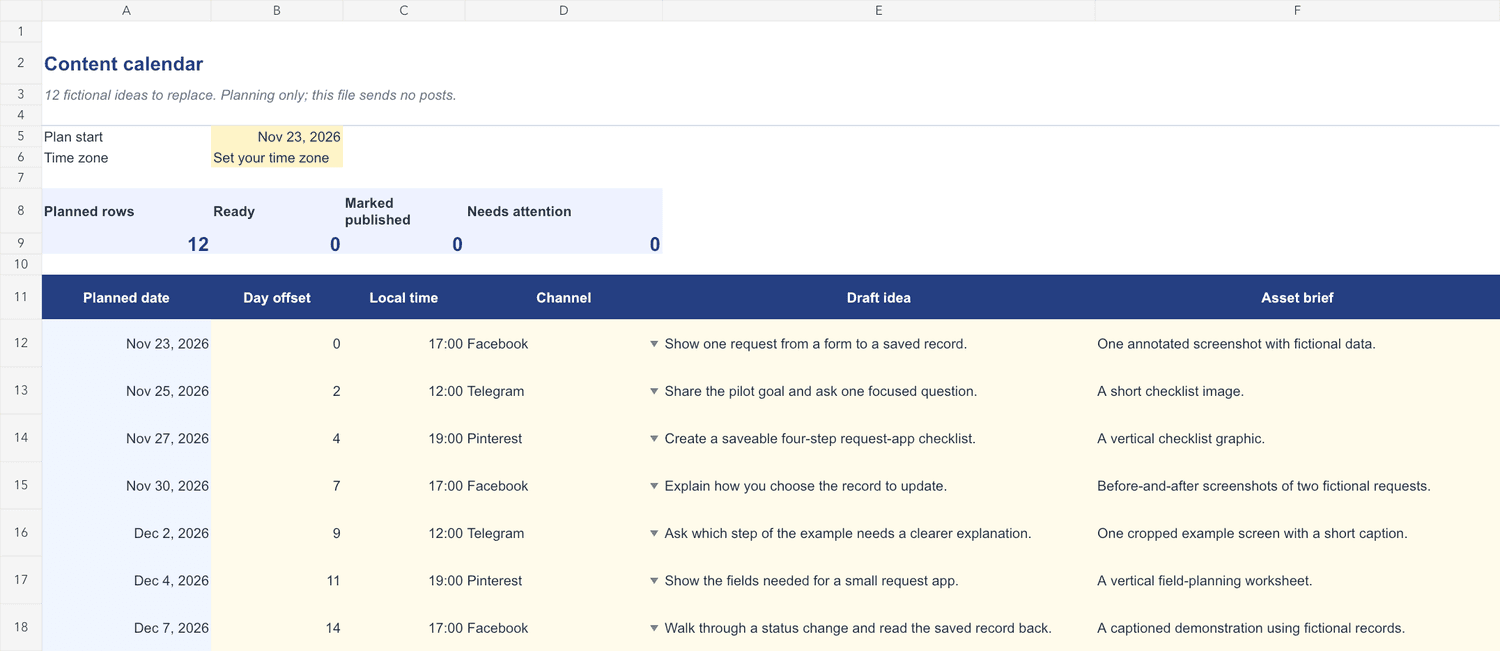
The totals describe entries in your worksheet. Marked published counts rows you marked; it does not fetch or verify a social network's result. When you mark a row Published without an HTTPS URL, the delivery check asks you to add one. With a URL, it asks you to open it and confirm the post yourself.
Preview the example in AppStruct Sheets
Open the read-only content calendar example
Inspect the 12 fictional planning rows in your browser. No AppStruct account is needed to view the published example.
This smaller table shows the week, day, channel, draft idea, media brief, owner, status and published URL. All owners are Not assigned, all statuses are Idea, and published URLs are empty: these are learning examples, not delivered posts or customer results. The public page is read-only; the source spreadsheet remains restricted.
Use this view to understand one row before adapting your own plan. For editable dates, status dropdowns and delivery checks, download the Excel workbook above. The published Sheets example does not include those workbook formulas and cannot schedule posts.
What belongs in a social media content calendar?
Keep enough detail to prepare and review a post without turning the calendar into a second writing tool.
| Field | What to record | Example |
|---|---|---|
| Planned date and local time | The intended publishing slot, with an explicit time zone | An editable date and 17:00 in your selected zone |
| Channel | One destination per row | Facebook, Telegram or Pinterest |
| Draft idea | The useful point the post will make | Show a request being saved and reopened |
| Asset brief | The media you still need to prepare | An annotated screenshot using fictional records |
| Destination URL | The page a reader should visit | A relevant guide or product page you own |
| Owner | The person responsible for review | Your teammate's name |
| Status | The current stage of this channel's post | Idea, Draft, Ready, Scheduled, Published or Needs attention |
| Published URL | A link you can open after delivery | The actual public post, when available |
One idea can produce several rows. Adapt its wording, image and destination to each channel. The example's Pinterest rows use saveable checklists, while Telegram rows invite a focused question. These are starting ideas, not instructions to publish identical copy everywhere.
Adapt the four-week example to your team
The fictional plan follows a product team explaining a small service-request app. It moves through four themes:
- Introduce the workflow. Show the form-to-saved-record journey and explain who the example helps.
- Explain a decision. Show how the app selects the record to update, using fictional data.
- Demonstrate a check. Reopen a saved request, change its status and inspect the result.
- Invite a useful follow-up. Share the next acceptance check and ask which step needs a clearer explanation.
Replace these themes with work you can demonstrate. A studio could show a design decision, a community could explain a recurring process, and a small SaaS team could answer one setup question. Use your own verified examples and only media you have permission to share.
Start with a pace your team can sustain. The file's three example deliveries per week are a planning illustration. They are not a tested cadence or a promise of reach. Remove unused rows, change channels and use actual results to decide the next week.
Move a reviewed row into AppStruct Social
AppStruct Social provides a composer, a queue and calendar views for connected channels. Account requirements and connection availability vary by destination. Use the channel's current connection status in the product when making your plan.
- Choose the intended workspace and connected channel. Confirm the account, platform and exact destination before preparing a post.
- Create the draft. Copy your reviewed text into the composer, add its relevant link and attach the prepared image or video. Check the channel preview and any publishing requirements.
- Choose a publishing time. Confirm the time displayed by the product. The spreadsheet's time-zone label is not transferred automatically. Save, then read the queue entry back to verify its channel, time, text and attachment.
- Check the delivery result. A saved scheduled item is still a plan. After its publishing time, inspect each channel's outcome and open the public post when a link is available. Update that channel's worksheet row separately.
If one destination fails, keep the successful destination's status and investigate the failed one. Do not republish everything merely to retry one channel. When no public URL or platform metric is available, record what you can confirm and leave the missing result visible.
For an optional assistant workflow, the Social MCP tutorial shows how to prepare and inspect an unscheduled draft. MCP draft creation is separate from scheduling and publication in Social.
Measure the calendar's results
Keep planning statuses separate from audience and product results. Record the public post first, then use the reporting each channel provides. An unavailable impression or click count is missing data, not a measured zero.
Give useful destination links distinct campaign labels. The free UTM link builder and launch tracker can help you prepare channel-specific links and a separate results worksheet. Avoid personal identifiers, secrets and customer information in campaign labels.
Compare complete periods, keep test visits separate and examine the sequence: published post, destination visit, useful product action. A calendar can make publishing easier to follow; traffic and registrations still need to be observed.
Common questions
Can I use the template without AppStruct?
Yes. The Excel file and CSV example are standalone downloads. An AppStruct account is needed only when you use the product and its applicable features.
Can I start with a blank calendar?
Yes. In a copy of the workbook, clear the example draft ideas and replace the other yellow input cells. Rows without a draft idea have no calculated date and do not count toward the status totals. Keep the blue and grey formula cells if you want automatic dates and delivery checks.
Does the workbook schedule posts or collect analytics?
No. It calculates dates and counts the statuses you enter. Scheduling, media uploads and delivery checks happen in your publishing tool. Channel analytics and website analytics are separate sources.
How do I extend the plan?
The included range supports 24 channel deliveries and day offsets from 0 to 27. For a longer plan, use a fresh copy with a new Plan start. Adding rows beyond the supplied range requires extending the formulas, validations and summary ranges yourself.
Prepare one useful week, review its media and destinations, then open AppStruct Social to build your publishing plan.